
Shifts
Your team's month, arranged
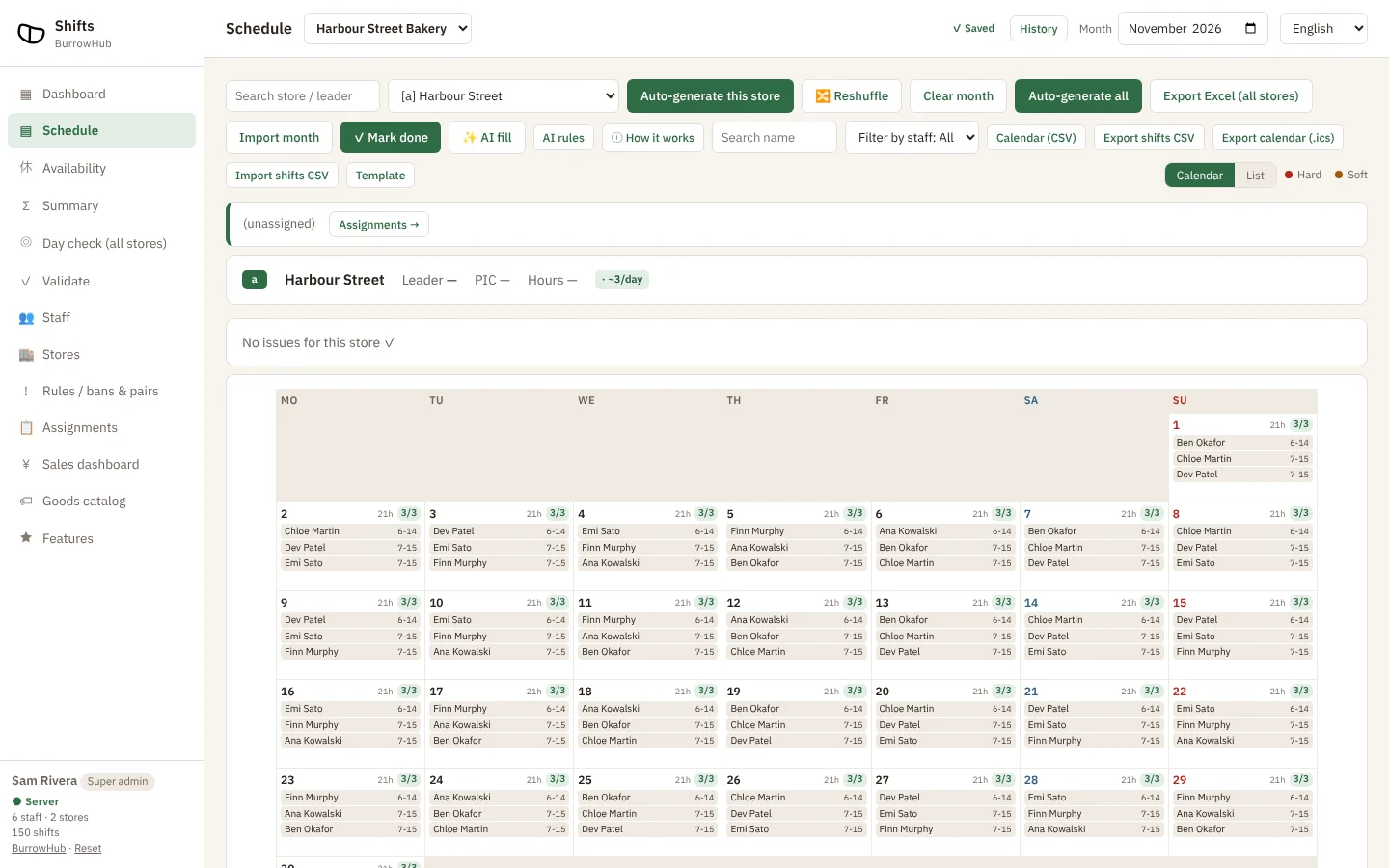 (opens larger)
On a computer 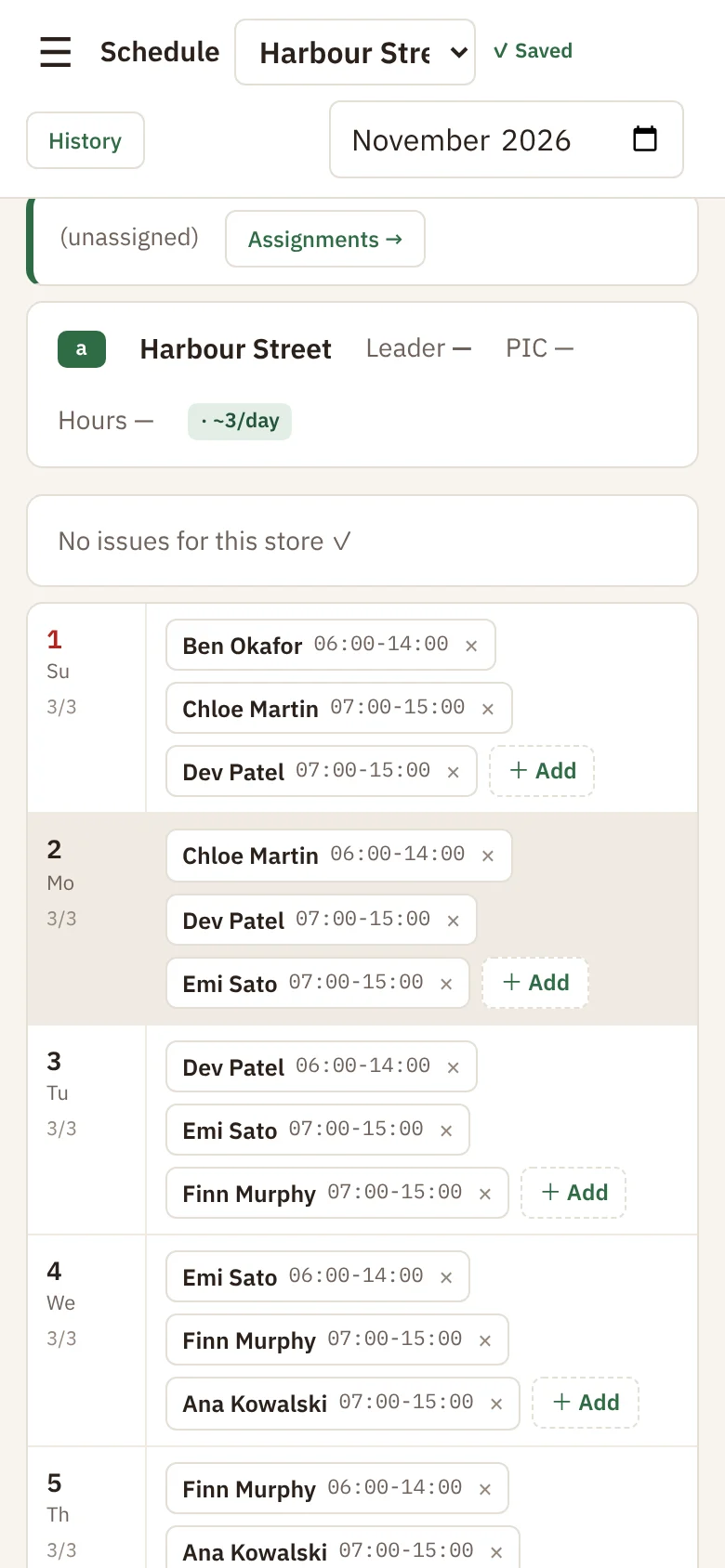 (opens larger)
On a phone
What it is
Plan who works where each day across your stores, collect everyone's days off, and check every rule before the month starts: a day somebody asked off, too many hours in a week, a store short of people. Import the month from your Excel workbook, fill gaps with the generator, and sign each store's month off when it is done.
A month's shifts are usually arranged in a spreadsheet that nobody else can check: the days off arrive in chat, the hours limits live in someone's head, and the first sign of a problem is a store with nobody in it. The goal is one schedule the whole team shares, with every rule checked on the screen while the planner works, and every person able to say which days they can't come.
What it does
- A Monday-first month per store, with each day's people and hours, and a check page that lists every rule finding
- Availability for the whole team, imported from your Excel master or given by each person in the staff portal
- Month import and export in your Excel layout, an automatic generator, change history with undo, and a month sign-off
Who it's for
- Whoever plans the month's shifts
Sees every rule checked on the screen while arranging, before the month starts.
- Staff
Say which days they cannot come, in the staff portal.
- Owners with more than one store
Check that no store is short of people and sign each store's month off.
How to use it
- Add Shifts to your business's apps, then open it.
- Set up your stores and your staff, or import them with the month from your Excel workbook.
- Collect days off: turn on the staff portal so each person enters theirs, or import them.
- Arrange the month, fill gaps with the generator, and fix what the check page lists.
- Sign each store's month off when it is done, and export it in your Excel layout.
What you'd use it for
- Arranging next month around who cannot come
Everyone says which days they can't work, and the rules are checked on screen while you plan.
- A schedule only one person can read
One schedule the whole team shares, instead of a spreadsheet and the hours limits in someone's head.
- Someone asks for a day off after the rota is out
Change the day, and the check page says at once if a store is now short or someone is over their hours.
- Undoing a change that broke the week
Every change is in the history with who made it, before and after, and can be undone.
What it keeps
What it doesn't do
- Your business on BurrowHub is one company here; companies are not created or renamed inside the app.
- The importers read your Excel layout; a spreadsheet laid out differently is not read.
- Members of your business can read the schedule but not change it; owners and admins plan.
For businesses
Made for businesses with staff and stores: one schedule the whole team shares, with roles deciding who plans and who only views.
- Owner or manager
- Arranges the month, runs the checks and signs each store off.
- Staff
- Give their days off in the staff portal and read the schedule.
Questions people ask
Can staff change the schedule?
No. Members of your business can read it, and people on the roster give their days off in the staff portal once a planner has set up their login. Only owners and admins change shifts.
What does the check page look for?
A shift on a day someone asked off, too many hours in a week, a store short of people, and the other rules you set for each store.
Can I keep using my Excel file?
Yes. Import the month from your workbook and export it back in the same layout.
Does it work for more than one store?
Yes. Each store has its own month and its own rules, and each store's month is signed off on its own.